Hair Color Simulator Online
 Reviewed by Alexandra Gilmore
Dyeing first and evaluating later is an expensive way to learn that a shade fights your complexion. Compare browser-based simulators that place color on your photo or live camera, then use the preview to narrow options before checking the real dye, lighting, privacy terms, and achievable result.

Choosing a new hair color without seeing it on yourself first is a genuine gamble — one that can cost you time, money, and a month of hating your reflection. A hair color simulator removes that risk by mapping a new shade directly onto your own photo before a single drop of dye touches your hair.
💫 Discover Your Complete Color Palette
One feature rarely explains every color that works for you. Compare your undertone, depth, clarity, and contrast as a complete palette, then use the results to test clothing, makeup, and hair colors more consistently.
Find My Color Palette →Today's tools have moved well beyond rough tinted overlays. Brands like Garnier, Redken, L'Oréal Paris, and Madison Reed have built browser-based simulators that let you upload a selfie — or use your device's live camera — and cycle through dozens of shades in real time. Whether you're considering a full transformation or a subtle upgrade, you can preview the result in under five minutes, free of charge.
Here's what this guide covers:
- How these simulators actually work on your photo, technically and visually
- A side-by-side breakdown of the top free tools available right now
- A step-by-step walkthrough so your first virtual try-on goes smoothly
- Practical advice for translating your on-screen pick into a real salon appointment
By the end, you'll know exactly which tool to open, how to set up the best possible photo, and how to walk into a salon — or your bathroom — with genuine confidence in your chosen shade.
What a Hair Color Simulator Actually Does to Your Photo
A hair color simulator isn't a photo filter. It doesn't tint everything on your head the same flat hue. Instead, it identifies your hair region in the image and applies a shade overlay that follows your hair's natural contours, volume, and separation — so the preview moves with your actual hairline rather than sitting on top of it like a painted layer.
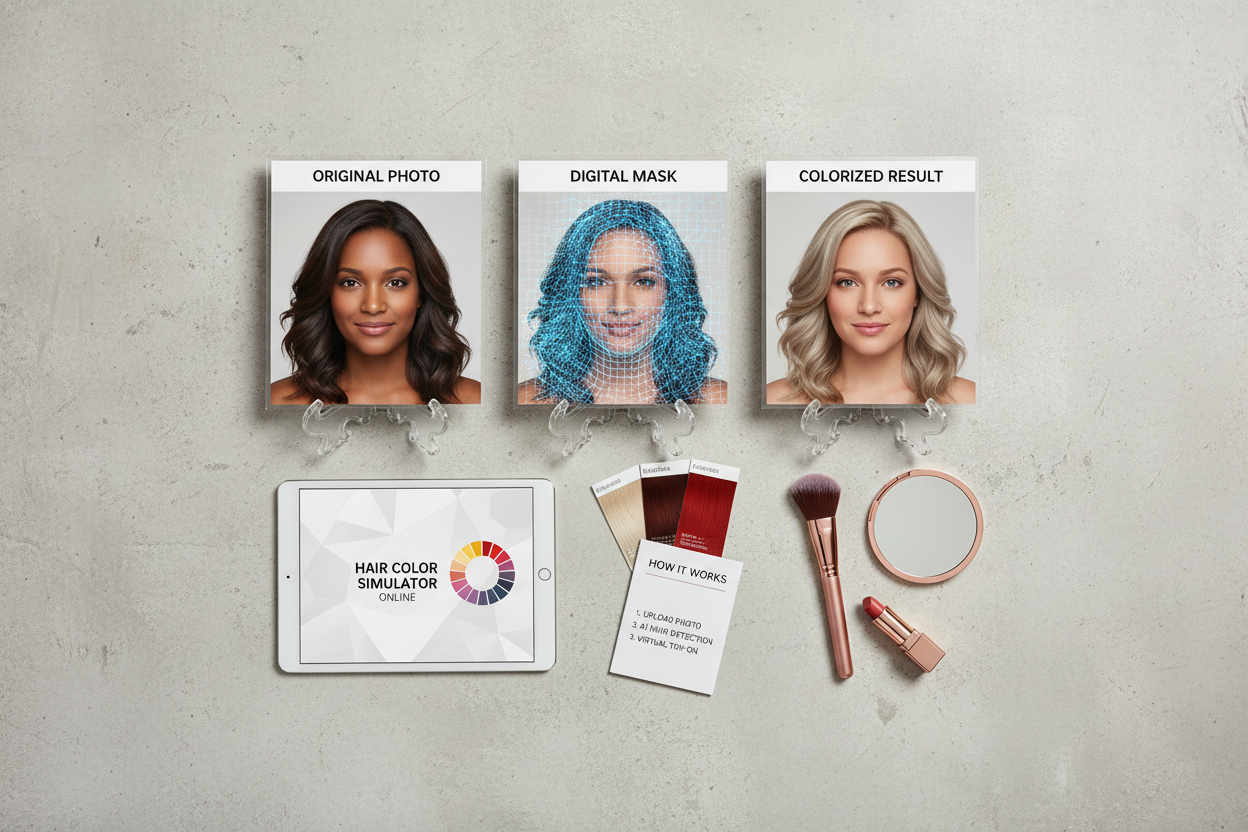
The workflow is simple: upload a photo, let the tool detect your hair, and browse shades until something clicks. Redken, for example, lets you upload a selfie or point your camera directly at the tool for a live preview — so it works on both static images and real-time video. That distinction matters when you're choosing a tool, because live camera mode lets you see how a shade looks as you turn your head.
What the technology is — and isn't
- It's a decision-support tool, not a color guarantee. Lighting in your selfie, hair texture, and screen calibration all affect how the simulated shade looks.
- It works best on clearly separated hair against a neutral background, which is why photo setup matters (more on that below).
- The output is most useful as a shortlist, not a final answer — it tells you which shade family flatters you before you commit to a professional consultation.
Going in with those expectations keeps the session useful. The goal is to leave with two or three shortlisted shades and a clearer sense of what to ask your colorist — not a pixel-perfect prophecy.
Not sure where your shade curiosity is pointing? Run a quick color analysis before you open any simulator. Try the free color analysis tool →
The Major Free Tools Side by Side: Garnier, Redken, L'Oréal Paris, and Madison Reed
All four tools are browser-based, free, and require no download. Where they differ is in positioning, shade libraries, and where they send you after the try-on.
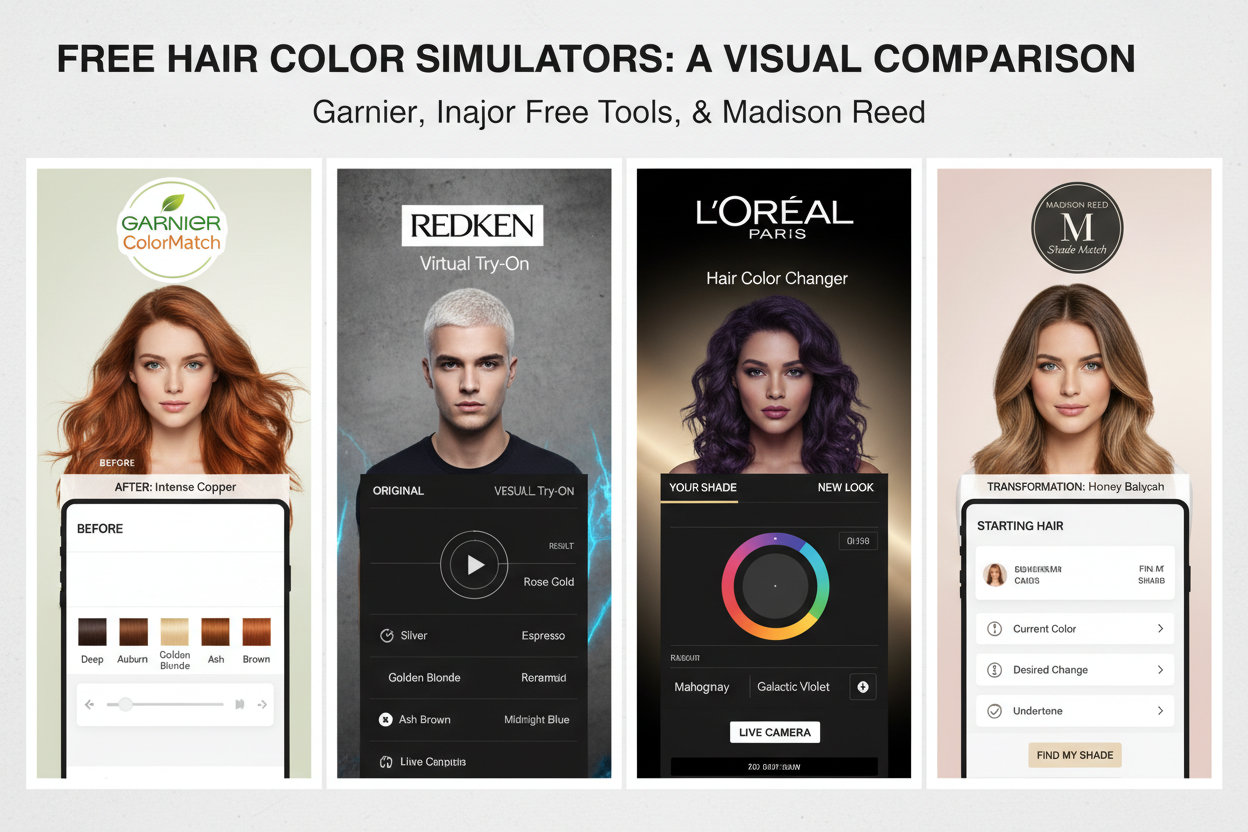
| Brand | Entry Point | Core Positioning | Notable Context |
|---|---|---|---|
| Garnier | Photo upload | Total makeover or quick upgrade | Shade-curious framing; broad shade range |
| Redken | Selfie or live camera | Find your perfect haircolor match | Step-by-step flow; salon-referral outcome |
| L'Oréal Paris | Photo upload | Find your perfect color | Active promotional offers alongside tool |
| Madison Reed | Photo upload | Hair color changer / virtual makeover | Subscription perks available after try-on |
The tools work similarly under the hood but are aimed at slightly different mindsets. Garnier is for the curious experimenter. Redken is for someone on a mission to find a specific match. L'Oréal Paris pairs the simulator with product discovery. Madison Reed wraps the whole thing inside an at-home color purchase experience.
Garnier's Virtual Hair Color Try-On: Built for Total Makeovers and Quick Upgrades
Garnier positions its simulator as useful for the full range of intent. The tool's own description calls it "an online hair color changer that helps you zero in on the perfect shade, for a total hair makeover or a quick upgrade." That framing is notable: it's the only major tool that explicitly validates both ends of the ambition spectrum.
Thinking about going from dark brown to platinum? Garnier signals it can handle that. Just want to see whether a slightly warmer brunette would suit you? Also fine. The "Feeling shade curious?" prompt on the landing page reinforces that there's no wrong level of commitment going in.
Redken Virtual Try-On: Selfie-First Flow for Finding Your Perfect Haircolor Match
Redken's tool opens with a single action: take a selfie. The instructions are blunt — "Upload a selfie, or use the camera on your phone to virtual try on a new hair color." That selfie-first approach gives the experience a more personal, portrait-oriented feel than a generic photo-upload flow.
The overall promise — "Find Your Perfect Haircolor Match" — frames the session around fit rather than transformation for its own sake. If you already have a shade in mind and want to confirm it works with your complexion and existing hair, Redken's step-by-step flow is well suited for that.
Step-by-Step: How to Run a Virtual Try-On in Under Five Minutes
The workflow is the same across tools. Follow these steps in order and you'll avoid the most common friction points.
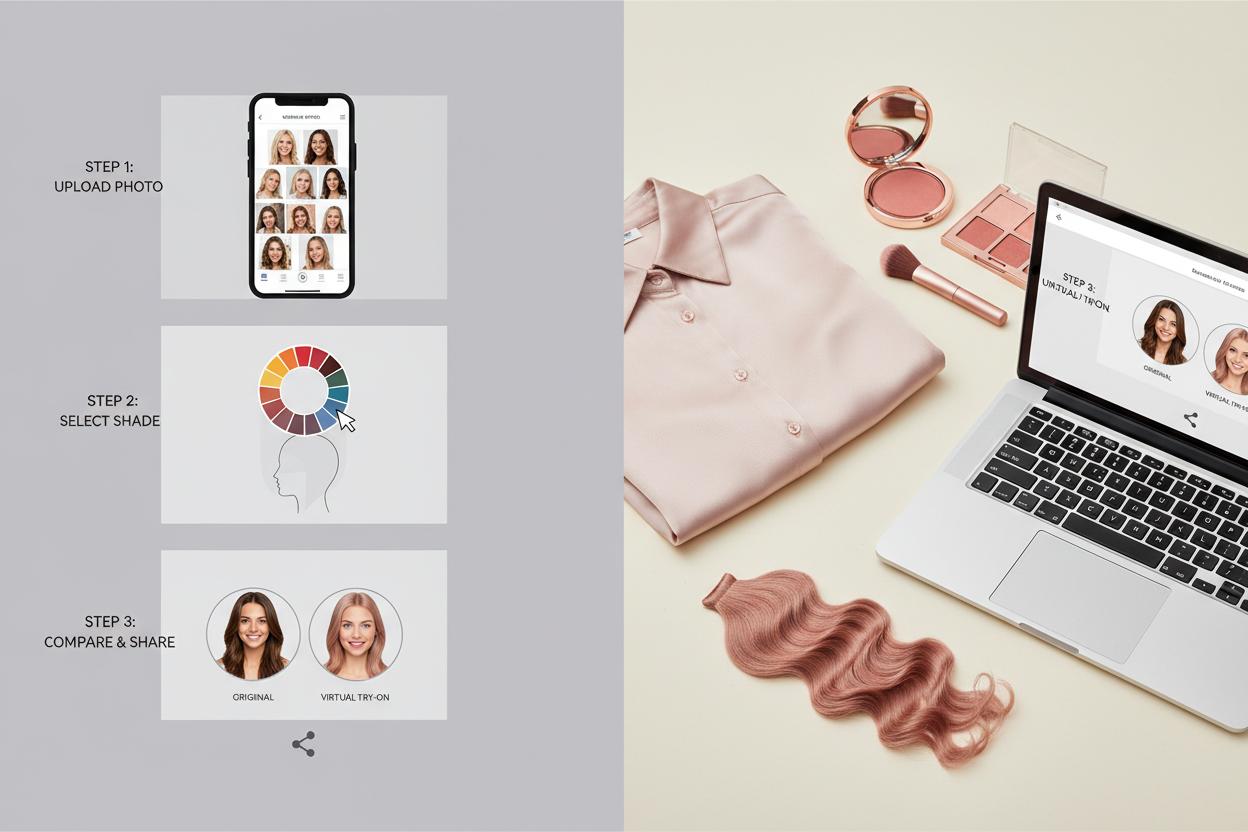
Step 1: Take or upload a selfie Use your phone camera or upload a recent photo. Pick an image where your hair is down, fully visible, and not blocked by hats, heavy shadows, or high-contrast backgrounds. Good lighting and a straight-on angle give you the cleanest shade detection.
Step 2: Try on your shades Browse the palette and apply colors one at a time. Most shade libraries run from lighter, cooler blondes through warm coppery mid-tones and into deeper brunettes and reds. Move fast on the first pass to find the tone family you're drawn to, then slow down and compare two or three finalists.
Step 3: Find a colorist and bring your virtual look Once you have a shortlist, save or screenshot your result. The Matrix/Redken workflow makes this explicit: find a colorist near you, bring your virtual look, and get ready to work it. The screenshot is your brief — it tells your stylist the direction, tone, and depth you want far better than trying to describe it out loud.
Choosing the Right Shade Range: From Buttery Blondes to Warm Reds and Coppers
Pick a shade family before you open anything. Browsing a full library without a starting point leads to decision fatigue and comparisons that don't actually help you.
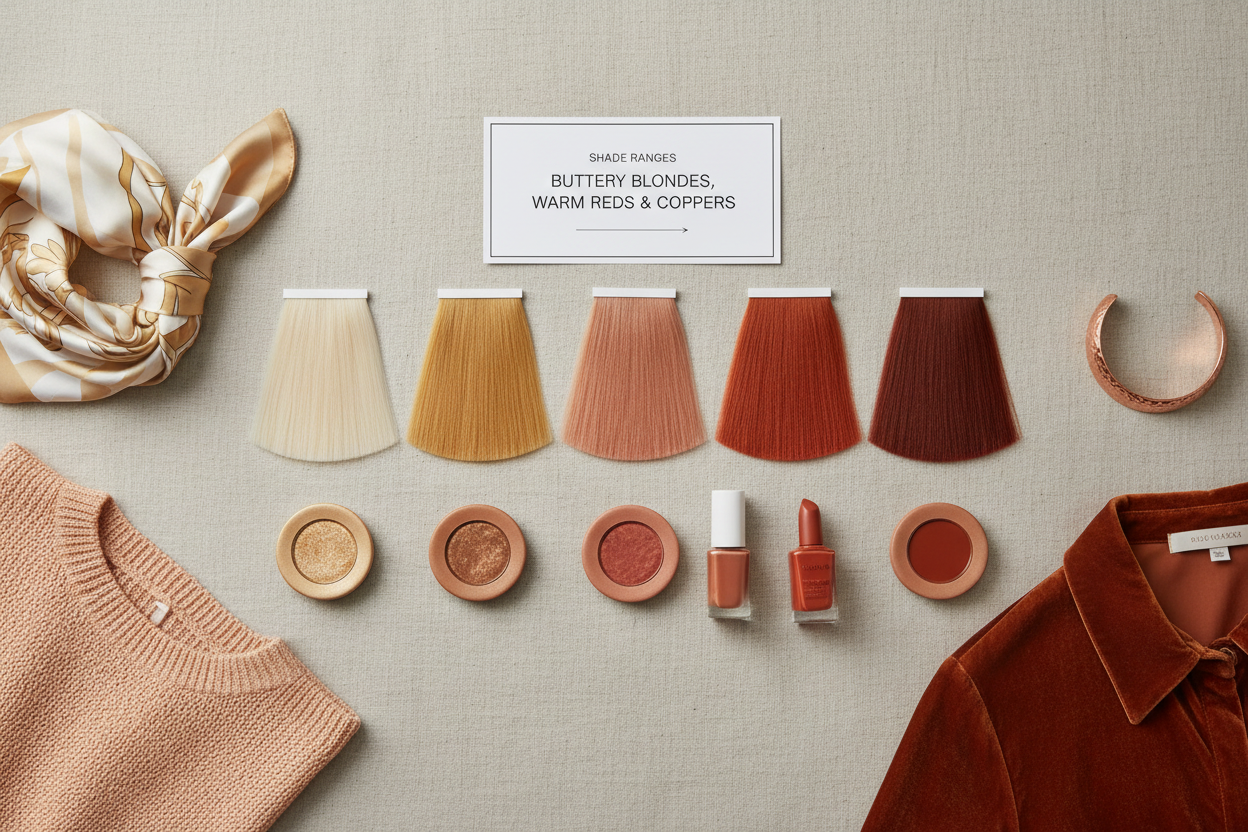
The language colorists use gives you a practical framework. Matrix, for instance, describes its palette as running from buttery blondes to warm reds and coppers — that range covers the most commonly requested shifts and tracks closely with how professionals talk about tone.
A simple starting framework:
- Buttery blondes: Warm, golden-toned blondes that work well on olive and medium skin tones. Less stark than platinum or ash.
- Warm reds and coppers: Auburn, copper, and true red. High-impact, but naturally flattering across a wide range of complexions.
- Brunettes: Not a named category in the tools above, but they sit at the centre of most simulators' palettes. Worth testing whether a slightly lighter or richer brunette changes the overall effect before you commit to a bigger shift.
If you're not sure where to start, a quick color analysis sharpens the target. Knowing your undertone before you browse helps you filter out shades that would read muddy or draining against your complexion.
Want to narrow it down before you open a simulator? Start the free color analysis →
Taking Your Virtual Look from Screen to Salon
The simulator's most practical use is as a communication tool for your salon appointment. A screenshot of your virtual try-on gives your colorist something concrete to react to — they can confirm whether the shade is achievable on your current hair, suggest adjustments based on your base color, and quote accurately for the service.
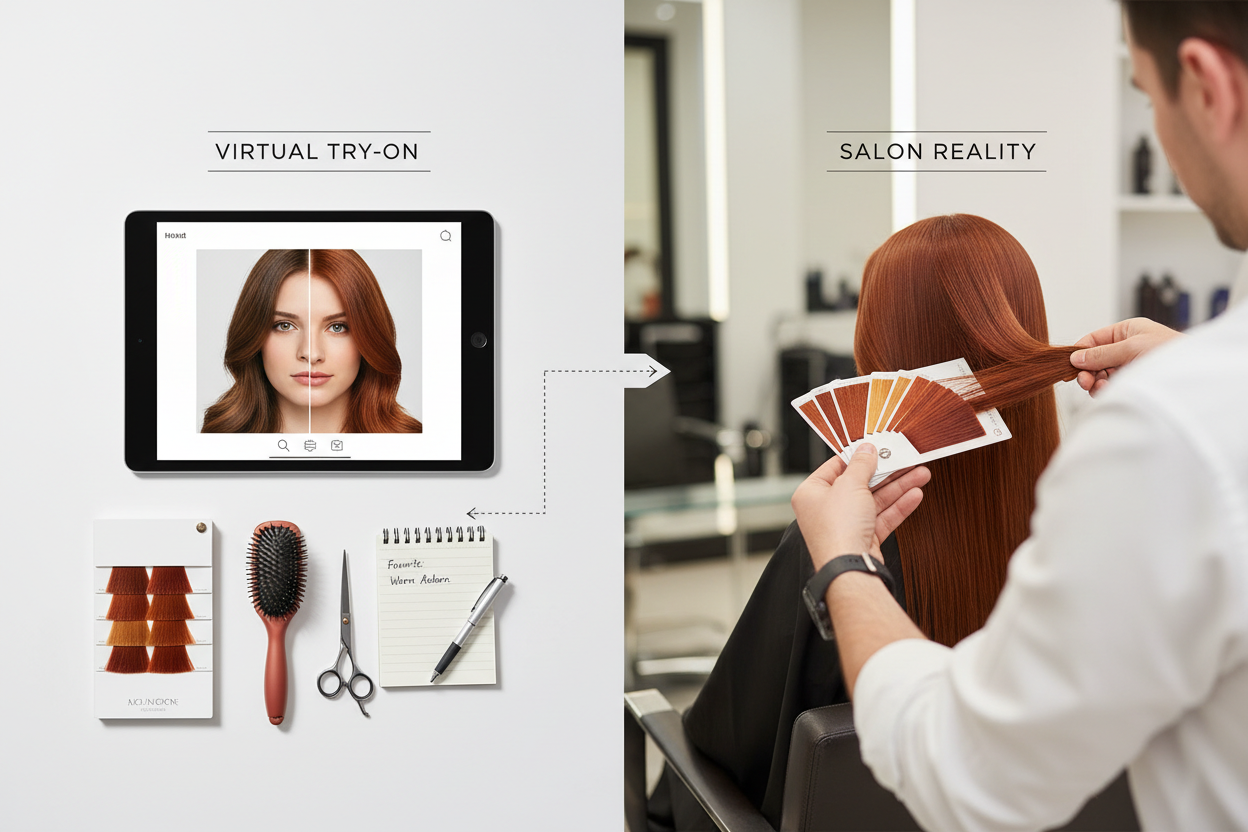
Treat it as the start of a conversation, not a final specification. Three things to do before you arrive:
- Save multiple versions. Screenshot two or three shade options, not just your top pick. Your colorist may flag that your first choice requires significant pre-lightening while your second achieves a similar look in one step.
- Note the shade names. Most tools display the product or shade name alongside the preview. Write those down so your colorist can look up the exact formulation or its professional equivalent.
- Flag the direction, not just the color. If the virtual result shows you going warmer, lighter, or richer, that directional language is as useful as the specific shade name.
What to tell your colorist when you arrive with a virtual look
Show the screenshot first and let your colorist respond before you describe what you want. Their initial reaction often surfaces compatibility issues or better alternatives faster than a verbal brief alone.
Then give context in this order:
- Where you're starting from: Your current base color and any existing chemical treatments — bleach, previous permanent color, keratin.
- The direction you want to move: Lighter, darker, warmer, cooler. Those terms are more useful than "I want this exact shade."
- Your maintenance appetite: Be honest about how often you'll come back for upkeep. A high-contrast result may look great in the simulator but need more frequent appointments than your schedule allows.
- The tool you used: Mentioning whether you used Garnier, Redken, or another brand helps — your colorist may know that tool's palette and can map the simulated result to the professional range they carry.
The goal is to walk in with a clear brief and walk out with a result that matches your screen preview as closely as the chemistry of your hair allows.
Subscription Perks and Offers Tied to Color Tools
Several tools surface promotional offers after you complete the virtual try-on. These are optional next steps, not requirements for using the simulator — the try-on is free regardless.
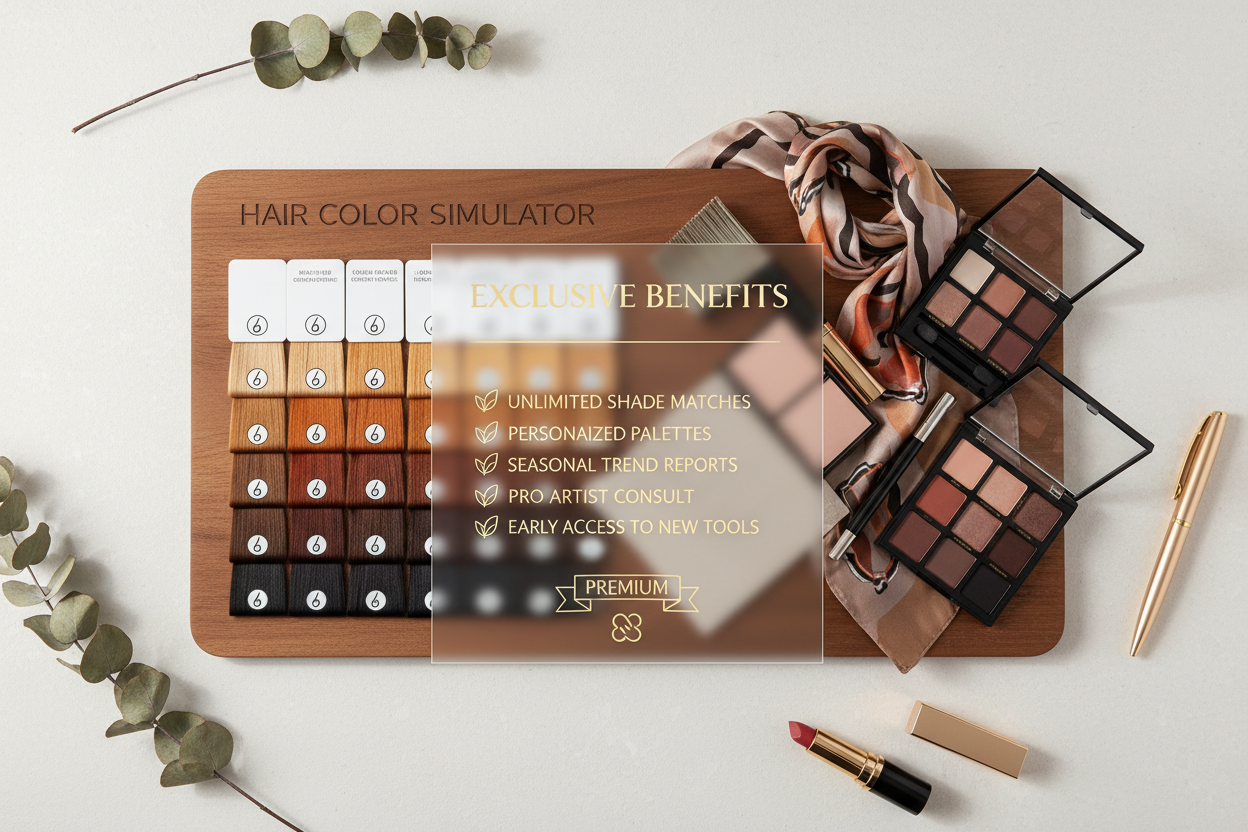
Madison Reed currently offers a free gift on your first color subscription order, along with a free detangling comb and 15% off when you sign up for regular color deliveries. Free shipping applies to orders over $50. These perks come up after the try-on session, as part of the at-home color purchase path.
L'Oréal Paris shows its own promotional offers alongside the virtual tool, though you can use the simulator without buying anything.
If you already know you want to color at home, it's worth a quick check to see whether a subscription offer applies before you add to cart. If you're going to a salon, none of this affects your try-on experience.
How to Get the Most Accurate Result from Any Hair Color Simulator
Photo quality is the single biggest variable in how useful the simulator is. The tool can only work with what you give it — a poorly lit selfie with heavy shadows across your hair will produce a much less useful result than a clean, evenly lit portrait.
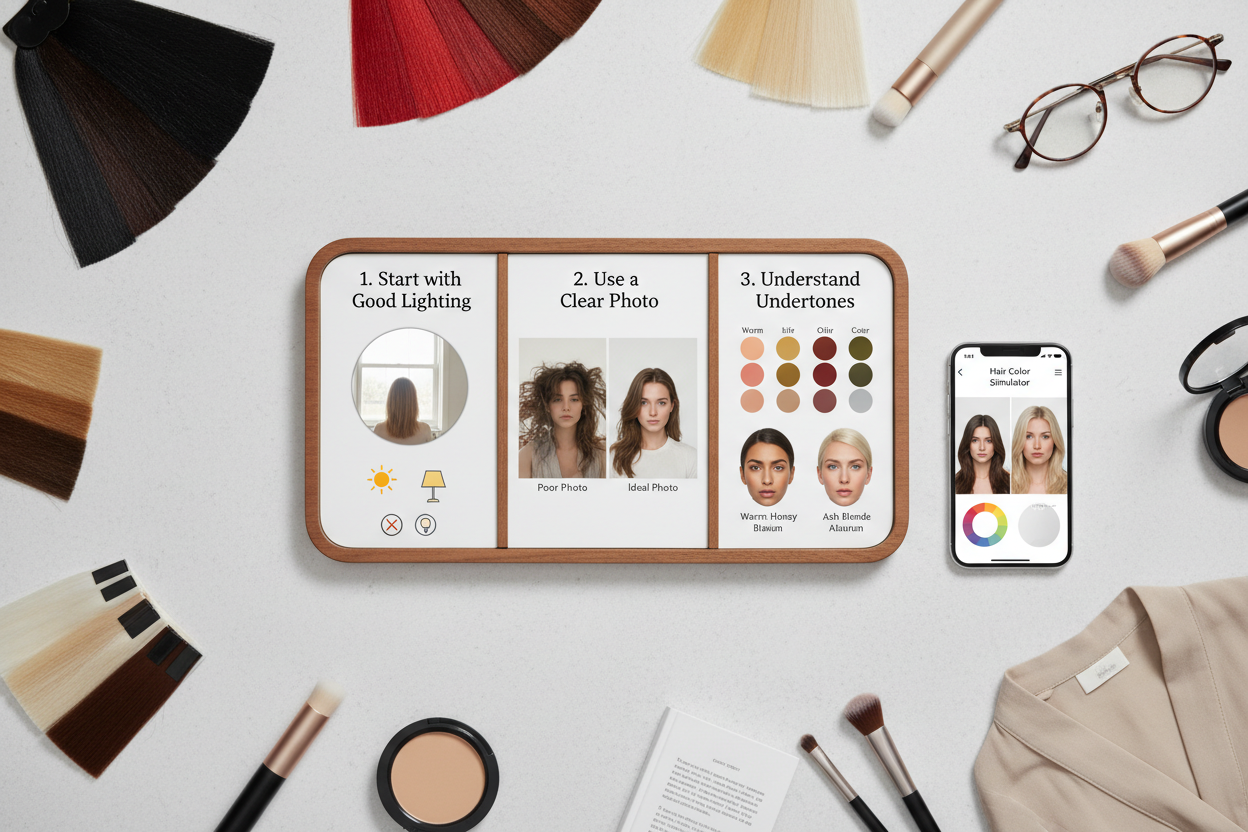
Lighting:
- Natural daylight is the most reliable source. Position yourself facing a window, not with the window behind you.
- Avoid mixed lighting (a warm overhead lamp combined with cool daylight, for example), which can shift how the simulated shade looks.
Background:
- A plain, neutral background helps the tool isolate your hair boundary more cleanly.
- Busy patterns or high-contrast backgrounds can cause edge detection errors that make the shade overlay look patchy.
Hair setup:
- Wear your hair down and away from your face so the full length is visible.
- Skip hair accessories, hats, or anything with heavy styling product that creates reflective glare.
Camera distance:
- Roughly arm's length gives the tool enough resolution to read your hair accurately without zooming so far out that detail is lost.
Live camera vs. uploaded photo:
- Live camera mode (available on Redken, for instance) is useful for seeing how a shade reads as you move your head, but the frame rate and resolution are typically lower than a still photo.
- For your final shortlist comparison, uploading your best selfie tends to produce a cleaner result than relying on live camera output.
Two extra minutes on setup noticeably improves everything you see afterward.
People Also Ask
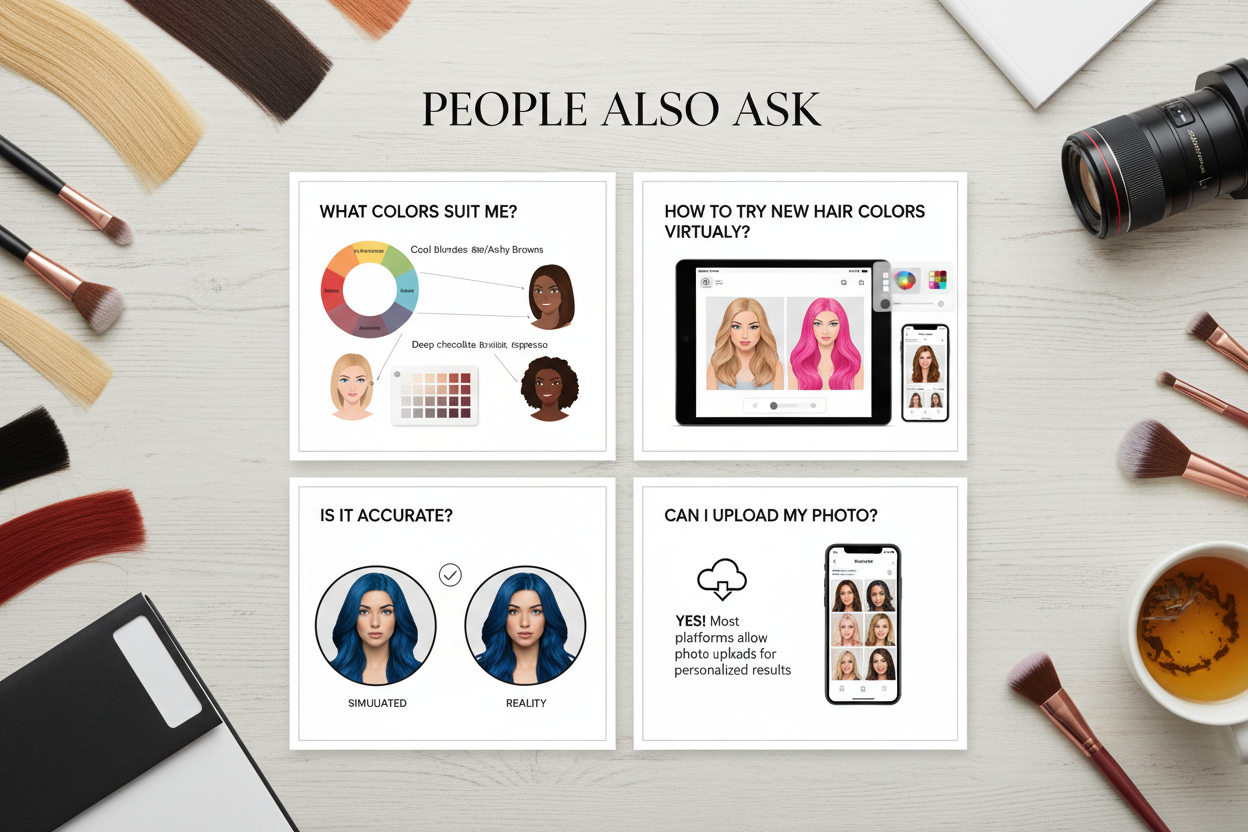
Can I try on hair color online using just a photo?
Yes. Every major brand simulator — Garnier, Redken, L'Oréal Paris, and Madison Reed — starts with a photo upload. A clear front-facing selfie on your phone is enough; you don't need specialist software or a professionally shot image. Redken also has a live camera option, so you can point your device at the tool and see shades in real time instead of working from a static shot. Either way, no download or account required.
Which hair color simulator is the most realistic?
Honestly, your input photo matters as much as the tool. A blurry or poorly lit selfie will undermine even the best simulator. That said, Garnier, Redken, L'Oréal Paris, and Madison Reed all use their actual shade libraries rather than generic color overlays, so what you preview corresponds to real products.
If live preview matters to you, Redken's flow lets you switch between uploaded photos and real-time camera use, and you can view a shade from multiple angles rather than staring at one static result. If you want to browse through a lot of shades quickly on a single image, Garnier handles that better. The practical move is to run the same photo through more than one tool and compare — that tends to build more confidence than trusting any single result.
Is Garnier's virtual hair color try-on tool free to use?
Yes. No purchase, subscription, or account needed. Garnier describes it as open to anyone who is "shade curious," whether or not you plan to buy. Product links show up alongside the tool, but those are optional — they're not a condition for using the try-on.
How do I bring my virtual hair color look to a salon appointment?
Screenshot your results before you go — two or three shortlisted shades, not just one. Show the images to your colorist at the start of the appointment, before you try to describe anything in words. Matrix actually builds this into its tool's workflow: try a shade, find a nearby colorist, bring the screenshot to the consultation.
When you get there, note the exact shade name from the simulator so your colorist can identify the closest professional equivalent. Also be ready to describe the direction you're after — warmer, lighter, richer — because that context helps them figure out what's achievable on your current base and how many sessions it might take.
Do hair color simulators work on all hair types and skin tones?
The shade libraries on platforms like Garnier and Redken cover a wide range of tone families — lighter blondes, warm coppers and reds, deeper brunettes — so most complexions and starting colors have relevant options.
Results tend to be most accurate when the hair is clearly visible: worn down, unstyled, and shot against a plain background. Tightly coiled textures, high-volume styles, or photos where shadows obscure the hairline can produce less precise overlays. A well-lit, front-facing photo gives the tool the clearest read regardless of hair type or skin tone.
FAQ
What is a hair color simulator and how does it work?
A hair color simulator is a browser-based tool that overlays virtual color onto a photo of your actual hair. You upload a selfie or use your device camera, it detects your hair, and maps your chosen color across that area using shade data tied to real products. That lets you see how a specific tone looks on your face before you commit to anything. Garnier calls its version an "online hair color changer" — meant to help you find the right shade, whether you're going for a full transformation or just a subtle change.
Do I need to download an app to use an online hair color simulator?
No. Garnier, Redken, L'Oréal Paris, and Madison Reed all run in a standard web browser — desktop, tablet, or phone, nothing to install. Some even support a live camera view so you can preview shades in real time without uploading a photo first.
Which shades can I try on with Garnier's virtual tool?
Garnier's virtual try-on covers the brand's full shade range:
- Blondes — from light and icy to warm and buttery
- Brunettes — including cool ash and warm chestnut tones
- Reds and coppers — from auburn through vibrant copper
- Darker shades — rich espresso and near-black options
Every shade in the library maps to an actual Garnier product, so if you find something you like, you can buy it directly or take the name to a salon.
Can I use a hair color simulator on Redken's website without creating an account?
Yes. Redken's virtual hair color tool doesn't require an account. Upload a selfie or use your camera to try on shades without registering or logging in. Take a photo, browse shades, preview the result — that's it.
How do I save or share my virtual hair color result before going to a salon?
Most simulators don't have a built-in save feature, but you don't really need one — a screenshot works fine. A few things that make it actually useful at the salon:
- Capture the shade name or product label visible on screen alongside your photo so your colorist can find the closest professional match.
- Save two or three options, not just your top pick, so you have something to compare and discuss.
- Send the screenshot to your colorist before the appointment if the salon does pre-consultation by text or email.
Matrix builds this into the tool explicitly — try on a shade, then bring that look to a colorist near you.
Are the subscription offers from Madison Reed and L'Oréal Paris required to use their simulators?
No. Both tools work without a subscription. Madison Reed does promote a subscription offer — including a free gift for first-time subscribers — next to its color changer, but that's a separate, optional step. You can browse and preview shades without entering payment details or signing up for anything. The subscription and the try-on tool have nothing to do with each other.
What photo setup gives the most accurate result in a virtual hair color try-on?
Your input photo has a direct effect on how accurately the tool maps a shade onto your hair. A few things help:
- Even, natural lighting — harsh shadows across your face or hair throw off the detection, and so does a strongly backlit window.
- Face forward with your hair down and unstyled so the tool can read the full hairline cleanly.
- Plain background — busy backgrounds can confuse the detection layer into misreading where your hair ends.
- Eye level — shooting from above or below distorts how a shade reads against your skin tone.
- Hair fully visible — pinned styles or hats leave gaps the tool can't map.
A decent photo takes under a minute to set up and makes a real difference in what you see on screen.
Before you open a simulator, run the color-analysis.app quiz to find the tone families most likely to work for your complexion.
Before finalizing a shade, compare this advice with the companion article “Best Virtual Hair Color Simulators: Compare Try-On Tools”, which keeps the two closely related questions distinct.