Free Virtual Hair Color Try-On
 Reviewed by Alexandra Gilmore
A free try-on can rule out an unsuitable hair direction before dye ever touches your head. Compare official tools from major hair brands, learn how uploads and live-camera previews differ, and save the most plausible blondes, brunettes, reds, or fashion shades for real-world evaluation.

Choosing a new hair color is one of the highest-stakes beauty decisions you can make — the results live on your head for weeks. A virtual hair color try-on removes the guesswork by letting you preview realistic shades on your own photo before a single drop of dye is applied.
💫 Discover Your Complete Color Palette
One feature rarely explains every color that works for you. Compare your undertone, depth, clarity, and contrast as a complete palette, then use the results to test clothing, makeup, and hair colors more consistently.
Find My Color Palette →Major brands including L'Oréal Paris, Garnier, Redken, Matrix, and Madison Reed now offer these tools directly on their websites, and most are completely free to use. Whether you want a total transformation or a subtle upgrade, you can:
- Upload a selfie (or use your phone's live camera) and see shades mapped onto your actual hair
- Browse dozens of color families — from cool-toned blondes to warm coppers and deep brunettes — in a single session
- Screenshot or save your favorites to bring to a colorist appointment
Garnier describes their tool as an "online hair color changer that helps you zero in on the perfect shade, for a total hair makeover or a quick upgrade." Redken's tool walks you through the process in a clear sequence: snap or upload a selfie, then swap colors in real time. L'Oréal Paris frames it simply as a way to find your perfect color — no commitment, no cost.
This guide covers how each major free tool works, how to take the right photo for an accurate preview, which platforms offer the widest shade selections, and how to translate your virtual result into a real-world color appointment.
Step 2 in Detail: Navigating Dozens of Shades Without Overwhelm
Opening a virtual try-on tool and facing a wall of swatches is where many people stall. Matrix's library spans dozens of shades, running from buttery blondes all the way through warm reds and coppers — and that's just one brand. Garnier and Redken each add their own extensive palettes on top of that. Without a quick filtering strategy, you'll spend ten minutes clicking at random and leave more confused than when you started.
Use a two-pass filter before you touch the tool.
Pass 1 — Lock in your warmth direction. Ask yourself whether you want the color to feel warm (golden, coppery, reddish) or cool (ashy, platinum, blue-violet). This single decision cuts the available palette roughly in half. If you're unsure, lean on your skin's undertone as a guide: warm undertones tend to flatter warm shades; cool or neutral undertones open the door to either family.
Pass 2 — Choose a depth range. Depth runs on a scale from 1 (darkest black) to 10 (palest blonde). Pick a range of two to three levels to explore — for example, levels 6–8 if you want a medium-to-light result. Most brand tools organize swatches by name rather than number, but you can still group them mentally into light, medium, and dark before clicking.
Practical tips once you're inside the tool:
- Start at your natural depth or one level lighter or darker. Dramatic jumps look exciting on screen but may require significant processing; a modest shift gives you an honest preview of what's achievable in one salon visit.
- Toggle between two finalist shades rather than cycling through everything. Side-by-side mental comparison is faster and more reliable than reviewing twenty options in sequence.
- Screenshot every shade you don't immediately hate. You can eliminate them later with fresh eyes; you can't re-find an unnamed swatch you accidentally clicked past.
- Check the shade in different lighting. Most tools render a static result, so zoom in and imagine the color under both warm indoor light and natural daylight before making your shortlist.
Treating Step 2 as a structured narrowing exercise — warmth first, depth second, favorites captured — means you'll arrive at Step 3 (saving or sharing your look) with two or three strong candidates rather than decision fatigue.
What a Virtual Hair Color Try-On Tool Actually Does
A virtual hair color try-on tool maps a chosen color onto your hair in a photo so you can see a realistic preview before any dye touches your head. Garnier describes their version as "an online hair color changer that helps you zero in on the perfect shade, for a total hair makeover or a quick upgrade" — which is a fair description of what every brand's tool is trying to do.
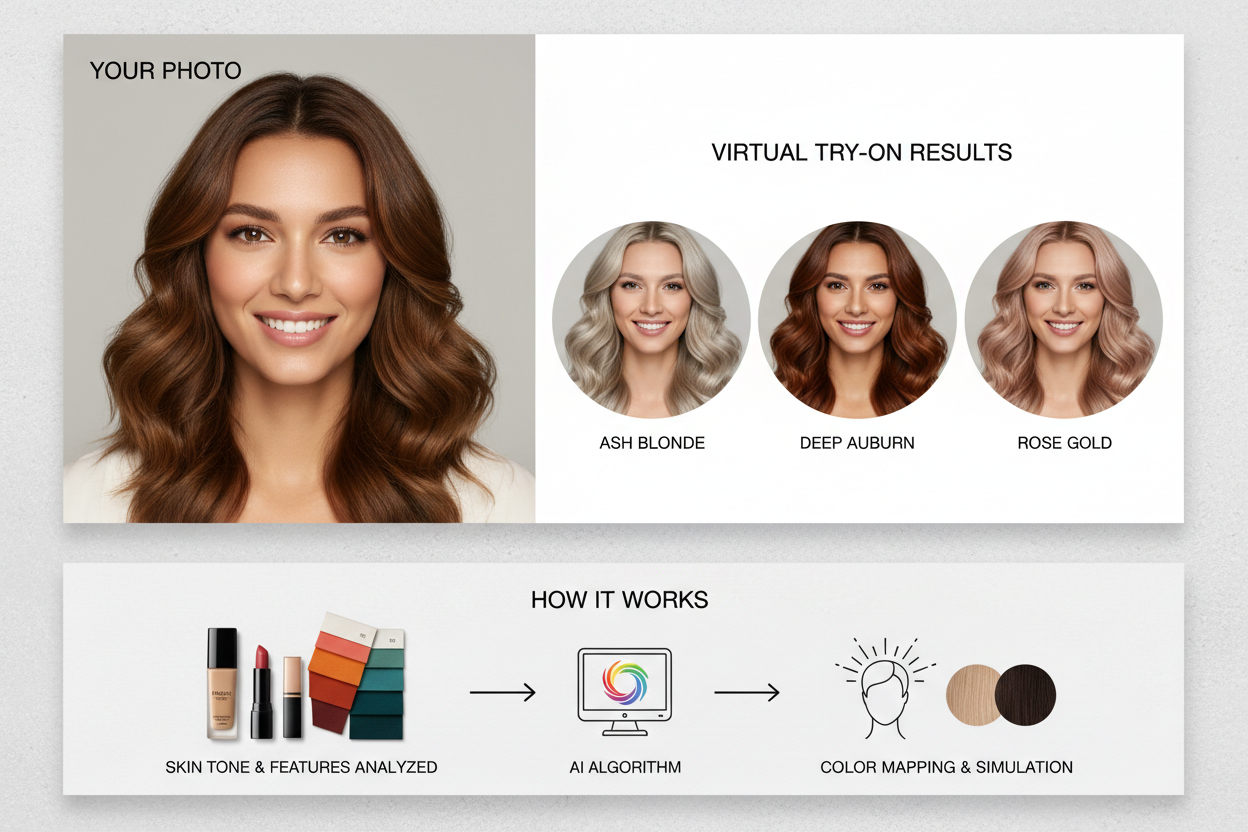
Two types of preview exist, and the difference matters:
- Static photo overlay — You upload a still image and the tool renders the new color onto your hair in that single frame. This is the most common format across the brands covered here, and it tends to produce the clearest, most detailed result.
- Live AR preview — The color updates in real time as you move in front of a camera. More dynamic, but lighting shifts can make the result look less precise than a carefully taken upload.
Knowing which mode a tool uses helps you set realistic expectations. A static overlay on a well-lit photo will almost always look more true-to-life than a live AR preview in a dim room.
What the tool cannot do:
- It cannot account for your hair's porosity, pre-existing color, or damage — all of which affect how dye actually deposits.
- It renders an idealized version of the shade. Your colorist may need to adjust the formula to get close to what you saw on screen.
The result is a useful reference point, not a guaranteed outcome. That's still worth a lot — it replaces guesswork with a visual anchor you can bring to a professional.
The 3-Step Workflow Every Free VTO Tool Follows
Every free virtual hair color try-on tool follows the same three-step sequence. Once you know it, you can move through any of them without guesswork.
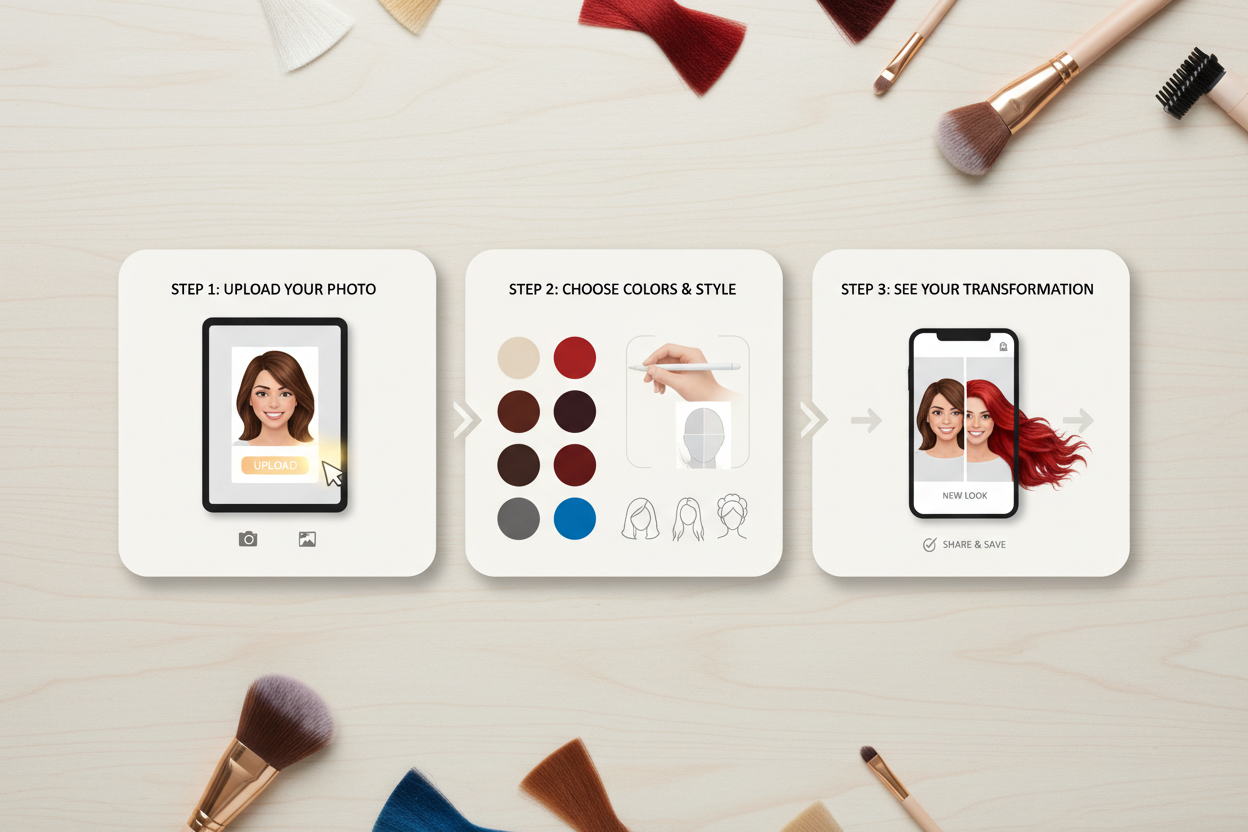
Step 1 — Take or upload a selfie. Redken makes this explicit: upload an existing photo or activate your camera directly inside the tool. The same entry point appears on Garnier, L'Oréal Paris, and Matrix. Your photo is the canvas for everything that follows.
Step 2 — Choose from the available shades. This is the exploration phase. Matrix offers dozens of shades spanning buttery blondes through warm reds and coppers. Tap or click a swatch and the tool renders it on your hair immediately. No commitment — clicking a new shade replaces the previous one instantly, so you can move through options at whatever pace you want.
Step 3 — Save your look and act on it. Matrix puts it plainly: find a colorist near you, bring your virtual look, get ready to wear it. In practice that means screenshotting your favorite result and using it as a reference — whether you're booking a salon appointment, picking up an at-home kit, or just getting a second opinion from someone you trust.
The whole process takes five to ten minutes. Low investment, real clarity before you commit to a color.
Which Free Virtual Try-On Tool Should You Use? A Brand-by-Brand Breakdown
Each tool is free to access in a browser, but they differ in focus, shade range, and what happens after you try something on.
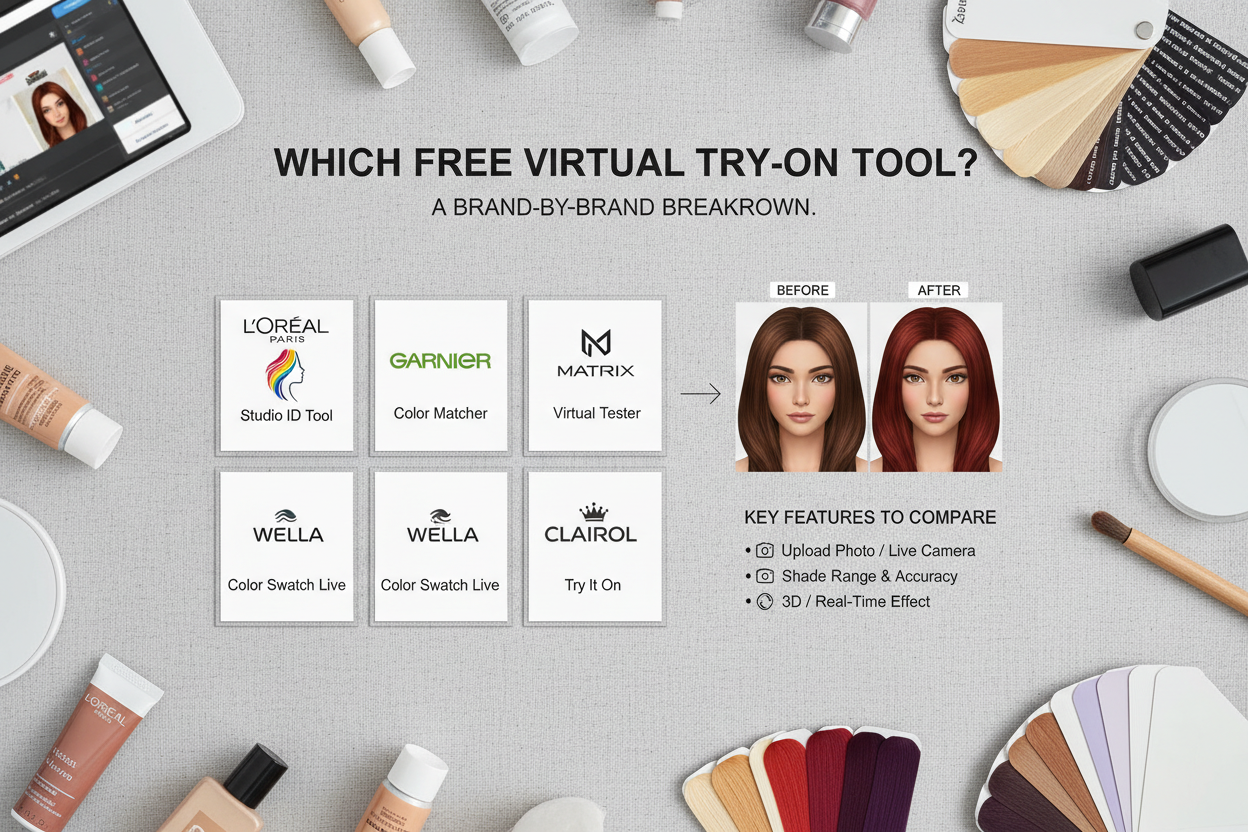
| Brand | Entry point | Shade range emphasis | Post-try-on path |
|---|---|---|---|
| Matrix | Upload photo or live camera | Dozens of shades; buttery blondes to warm reds & coppers | Find a salon colorist |
| Redken | Upload selfie or phone camera | Professional salon shades | Book with a Redken stylist |
| L'Oréal Paris | Browser-based virtual try-on | At-home color range | Purchase product directly |
| Garnier | Browser-based, no download needed | Full at-home color range | Shop Garnier products |
How to choose:
- If you're planning a salon visit, Matrix or Redken are the natural fit — both are professional brands and their tools are designed to connect you with a colorist.
- If you want to color at home, Garnier or L'Oréal Paris cover their full retail ranges and link straight to product pages.
- If you're open to a subscription with built-in perks, Madison Reed (covered below) adds something none of the others do.
Madison Reed: Try-On Paired with a Subscription Offer
Madison Reed's virtual makeover tool works the same way as the others — upload a photo, preview shades, save your result — but it adds a post-try-on offer that the other tools on this list don't match.
After trying on a color, first-time subscribers get a free detangling comb plus 15% off their first color subscription, and orders over $50 ship free. The comb is a one-time deal, not an ongoing promotion.
Why does this matter? Madison Reed is cutting down the distance between "I like this shade on screen" and actually buying it. If you're already leaning toward at-home color and want a steady supply of the same formula, the try-on tool here works as both a discovery step and a direct path to checkout.
Shade Categories You Can Preview: From Buttery Blondes to Warm Reds and Coppers
Virtual try-on libraries are large, but shades cluster into recognizable families. Knowing those families before you start keeps the experience from becoming a two-hour scroll.
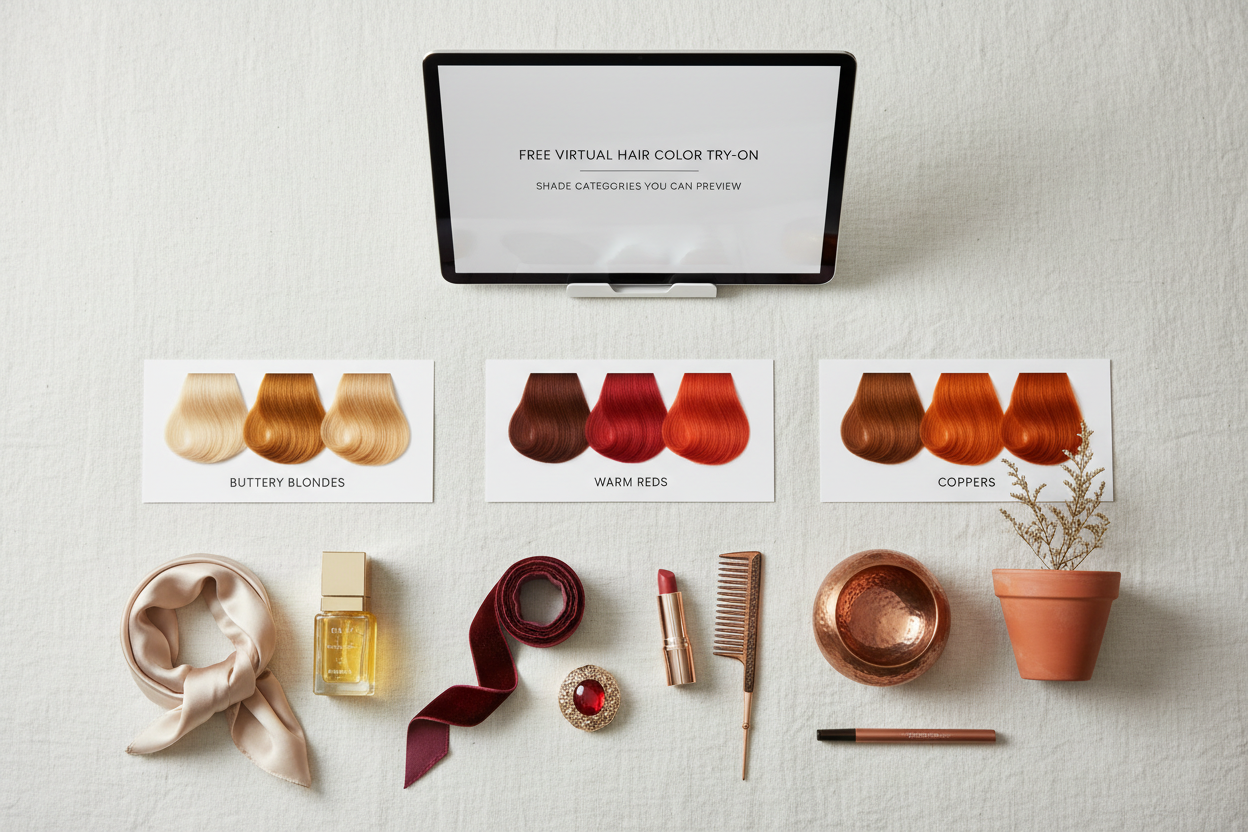
Blondes
- Warm/buttery blondes — golden, honey, and caramel tones with yellow-orange undertones
- Cool/ashy blondes — platinum, pearl, and champagne tones that read silver or neutral
- Dimensional blondes — balayage-style blends that mix light and dark within the same shade
Brunettes
- Warm brunettes — chestnut, chocolate, and toffee shades with reddish or golden depth
- Cool brunettes — ash brown and cool espresso shades with no visible warmth
- Dark brunettes/near-blacks — the deepest end of the brown family, close to level 1–3
Reds and coppers Matrix specifically calls out warm reds and coppers as a major cluster in their library. This family runs from soft, peachy copper through deep auburn and vivid red — one of the more dramatic transformations you can preview before committing to anything.
What to note before you start browsing: Almost every tool renders the shade over your existing hair tone, so a "light copper" will look different on dark brown hair than on previously lightened hair. If the preview looks muddier or darker than you expected, that's often an accurate reflection of how much lift your hair would need — useful to know before you book.
Not sure which shade family actually suits your skin's undertone? A seasonal color analysis can answer that before you spend time previewing shades that won't work for your complexion — more on that below.
How to Take the Right Selfie for an Accurate Color Preview
The quality of your virtual try-on result depends almost entirely on the photo you give it. Redken's tool lets you upload an existing photo or use your phone's camera — either way, the same principles apply.
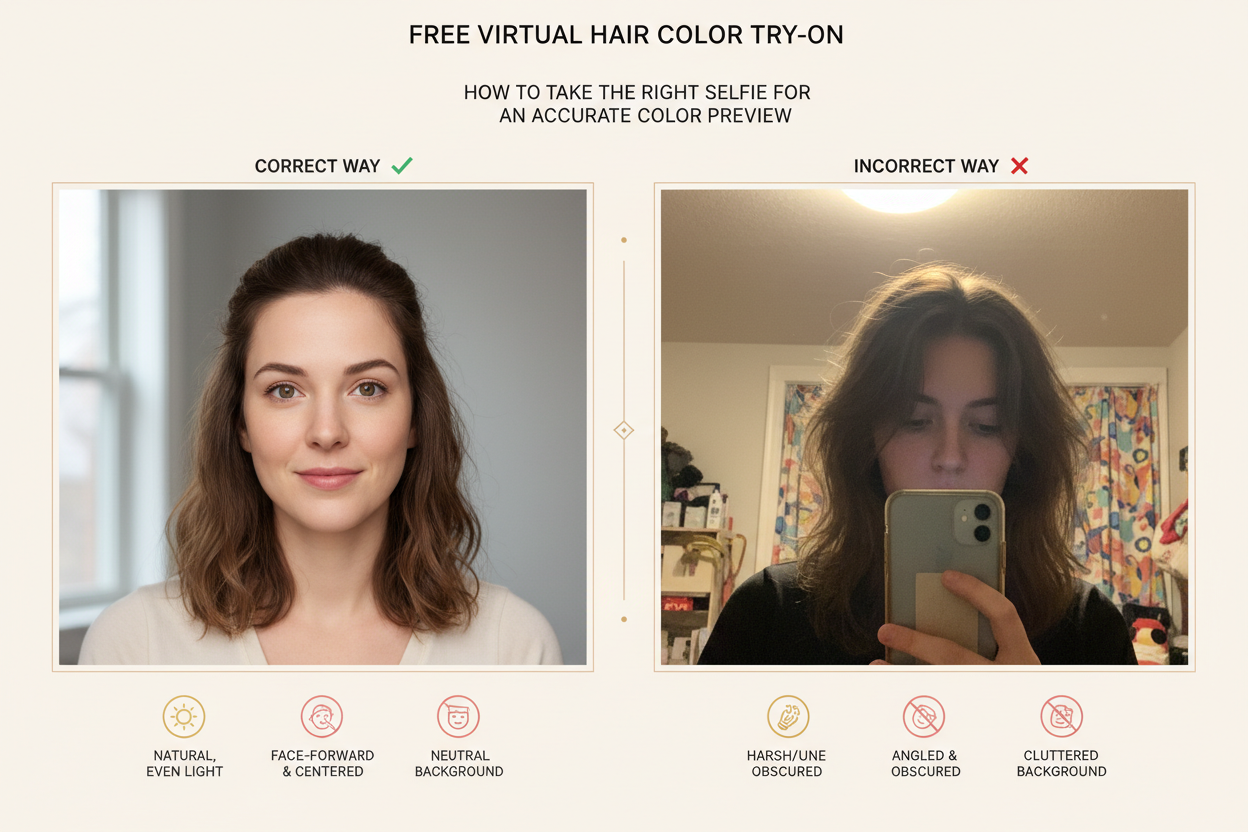
Lighting
- Natural daylight from a window works best. Face the light source rather than standing with it behind you.
- Avoid harsh overhead lighting — it creates shadows that make it harder for the tool to tell your hairline from your face.
- Skip flash. It bleaches out undertones and makes the rendered color look off.
Angle and framing
- Shoot straight on, chin level, face centered.
- Include your full hairline, forehead, and a few inches of hair length. The tool needs enough visible hair to map the color convincingly.
- Avoid tilts or side angles. The color mapping works best on a front-facing reference.
Hair position
- Wear your hair down so the tool can render the color across its full surface.
- Keep hair away from your face — pulled-back sections can confuse the hairline detection.
- If you normally wear your hair in layers or with a part, style it that way first so the preview reflects how you actually look.
One final check before uploading: look at the photo and ask whether a stranger could clearly see where your hair begins and ends. If yes, you're good to go.
From Virtual Look to Real Salon Appointment: Closing the Loop
The try-on result only matters if you do something with it. Matrix makes this explicit: bring your virtual look to a colorist and get ready to wear it. Here's how to make that handoff work.
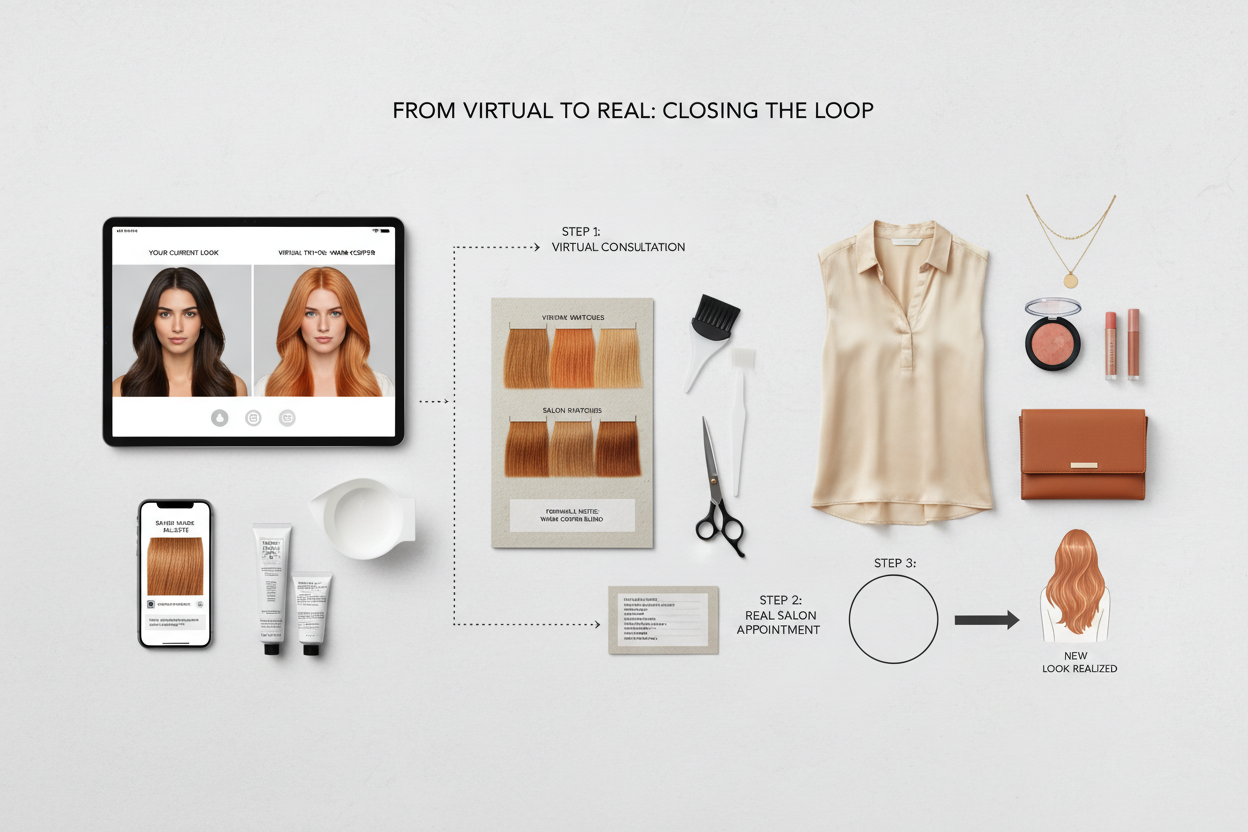
Save multiple angles of your result. Screenshot your preferred shade as soon as you find it. If the tool lets you nudge the shade slightly (lighter, more copper, and so on), screenshot those variations too. Two or three nearby options give your colorist a range to work within rather than a single target that may be hard to match exactly.
Add context to the image. Before your appointment, write down the shade name if the tool displayed one. Some tools (Madison Reed's in particular) show the product name alongside the visual preview, which is useful if you later decide to color at home instead.
Show the screenshot at the start of the consultation. Lead with the visual rather than describing the color in words and pulling up the image as an afterthought. Colorists work with references every day. A clear screenshot communicates more than "something warm but not too orange."
Discuss achievability in your session, not afterward. Your colorist can tell you right away whether your current hair can reach the previewed shade in one appointment or whether it needs a two-step process. Getting that answer before the service starts prevents disappointment later.
Explore cost-reducing options after trying on. If the preview points you toward an at-home formula, Madison Reed's subscription offer (15% off your first subscription, free shipping over $50) and Garnier's and L'Oréal Paris's direct product links let you act on the result without a salon visit. The virtual look becomes a shopping brief rather than a salon reference.
How Color-Analysis.app Extends Your Virtual Try-On Results
A virtual try-on tool answers one question: what does this color look like on my hair?
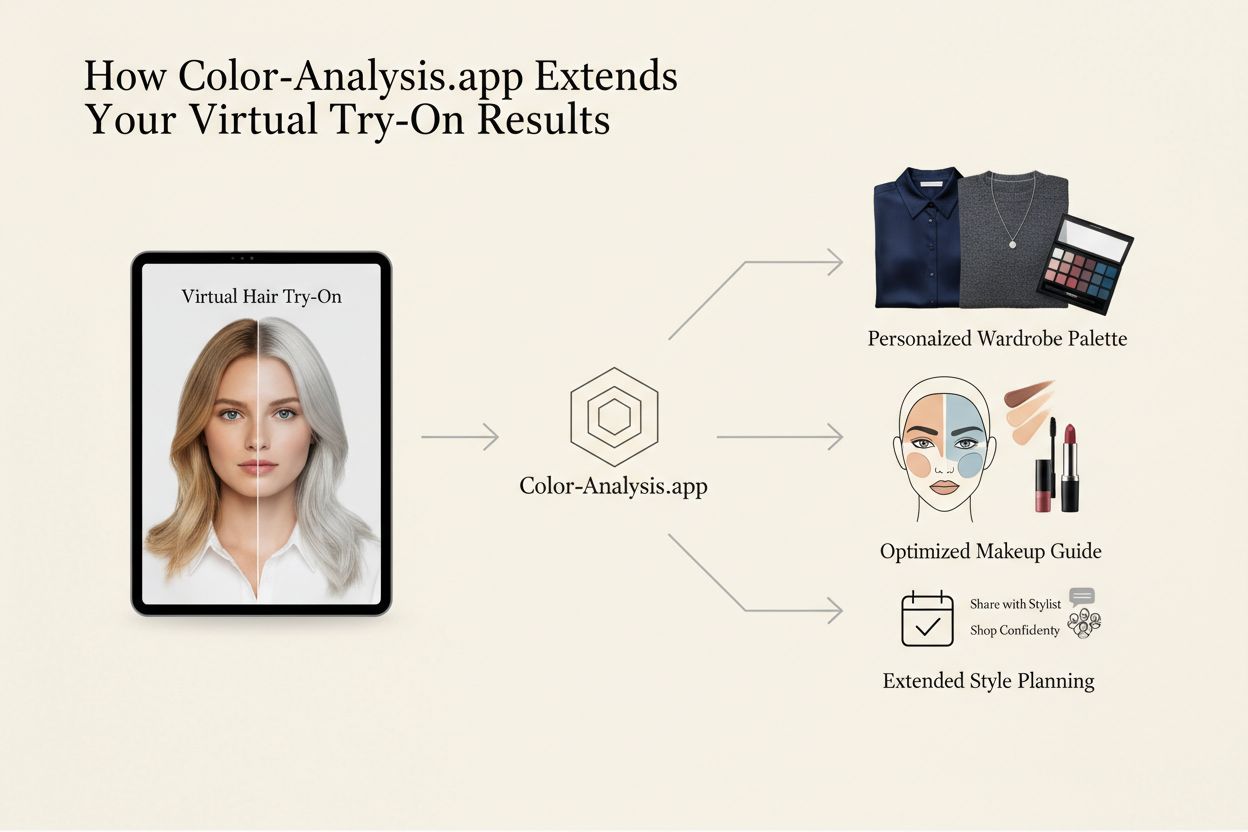
It does not answer a different, arguably more important question: which shade families are actually flattering for my skin tone, eye color, and natural undertone?
That's where seasonal color analysis adds something the try-on tools above can't. Rather than previewing shades at random, it maps your coloring to a specific palette — warm, cool, soft, or deep — and identifies which hair color families will work with your complexion instead of against it.
In practice, this means you arrive at a virtual try-on with a pre-filtered shortlist. Instead of browsing every blonde in the library, you already know whether you want golden blondes or ashy ones. Instead of wondering whether copper suits you, your analysis either confirms it fits your palette or tells you it'll pull your skin toward sallow or washed out.
The two tools work best in sequence: color analysis first to identify your palette, virtual try-on second to visualize a specific shade within it. You end up with a more confident, more targeted decision — and a shorter gap between what you see on screen and what your colorist actually delivers.
People Also Ask
Is there a free app to try on hair color virtually?
Yes — and most of the best options don't require an app download at all. Garnier, L'Oréal Paris, Matrix, and Redken all offer free virtual hair color try-on tools that run directly in a browser on desktop or mobile. You upload a photo (or use your phone's camera), select a shade, and see the result instantly. Madison Reed's tool works the same way and is also free to use, though it surfaces a subscription offer after your try-on session. No payment information is required to preview colors on any of these platforms.
How accurate are virtual hair color try-on tools?
Reliable as a general guide — not a guaranteed exact match. The tools render a digital version of the chosen shade over your photo, so they do a decent job of conveying hue and tone: whether a color reads warm, cool, dimensional, or vivid. What they can't account for is your hair's actual porosity, any existing color already in the hair, or how much lift your strands would need to reach a lighter shade. The preview tends to be most accurate when your hair is already close in depth to the target color. Significant lightening looks achievable on screen even when it would require multiple salon sessions in real life — worth mentioning to your colorist when you bring the screenshot to a consultation.
Can I use a virtual hair color try-on tool without downloading an app?
Yes. Garnier's tool runs entirely in the browser, and the same goes for L'Oréal Paris, Matrix, and Madison Reed. Redken's tool lets you upload a saved photo or use your phone's camera right inside the browser, no app required. All five work on any device with a current browser and an internet connection. If a brand also offers a dedicated app, it's optional — the web version stands on its own.
Which virtual hair color try-on tool has the most shade options?
Matrix is the most frequently cited for breadth, with dozens of shades spanning buttery blondes through warm reds and coppers. Garnier and L'Oréal Paris cover their full retail ranges, which are also large and include everything from near-black brunettes to light cool blondes. If shade variety is your priority, Matrix or Garnier are good starting points — both have well-organized libraries. That said, more shades only matter if they're the right shades for your coloring. A tool with a smaller, well-filtered library will often get you closer than one with more options and no guidance.
How do I show my colorist my virtual hair color result?
Screenshot your preferred result before leaving the tool — most platforms don't save your session. Take it when the color is displaying clearly, with good contrast between the hair and background. If the tool shows the shade name next to the preview, include that in the frame or write it down.
At your appointment, lead with the image rather than a description. Hand your phone to your colorist at the start of the consultation. Colorists work from visual references all day, and a clear screenshot tells them far more than phrases like "warm but not too red." Bringing two or three screenshots of nearby shades gives them room to work if the exact match needs adjustment based on your hair's current condition.
FAQ
Are virtual hair color try-on tools really free to use?
Yes. The major brand tools — Garnier, L'Oréal Paris, Matrix, Redken, and Madison Reed — are all free. No payment information required. Madison Reed may show you a subscription offer after your session, but the try-on itself costs nothing. The tools exist because brands want to connect you with products you can actually buy, which is why the shade libraries map to real SKUs.
Do I need to create an account to use a brand's virtual try-on tool?
Usually not. Most tools run directly in the browser with no sign-in required. Garnier, Matrix, and Redken all let you try shades as a guest. Some brands will ask you to create an account if you want to save or share results, but you can get through the actual try-on without registering. If you want to keep track of shades you liked, screenshots work fine either way.
How many shades can I preview in a single session?
There's no standard limit — you can switch between shades as many times as you want. Matrix has dozens of options, from buttery blondes to warm reds and coppers. Garnier and L'Oréal Paris map their full retail ranges to their tools, so the selection is similarly wide. In practice, you just tap swatches one after another on the same photo, which makes comparing options pretty quick.
Will the virtual color look accurate on my actual hair texture and tone?
The preview gives a reliable read on hue and tone, but it has limits. What the tools do well:
- Showing whether a shade reads warm, cool, or neutral
- Distinguishing between light and dark depth levels
- Revealing whether a color will look vivid or subtle against your face
What the tools cannot account for:
- Your hair's porosity or existing color history
- How much lift would be required to reach a lighter shade
- How texture — fine, coarse, curly — affects how color develops and reflects
The preview is most accurate when the target shade is close in depth to your current color. For significant lightening, treat the result as directional guidance and ask a colorist to confirm what's achievable in one session.
Can I save or share my virtual hair color preview?
Most platforms let you save or share, though not all of them. When saving is supported, you usually get a downloadable image or a shareable link. The most reliable option across any platform is a screenshot — take it while the shade name is visible so you have the color reference right there. That way you have something concrete to bring to a salon consultation, whatever the tool supports.
What is the difference between a virtual try-on tool and a color quiz?
A virtual try-on tool is a visual overlay experience: it maps a chosen shade onto your uploaded photo so you can see how it looks on your actual face and hair. The output is an image.
A color quiz is a guided questionnaire that asks about your current hair color, skin tone, desired outcome, and lifestyle, then returns a recommended shade or shade range. The output is a suggestion, not a visual preview.
The two tools work well together. A quiz narrows the field by ruling out shades that won't suit your coloring. A try-on tool then lets you see the shortlisted options on an actual photo of you. Using both is more effective than using either alone: the quiz filters, the try-on confirms. Color-analysis.app's seasonal color analysis works like a quiz in this sense, giving you a tonal framework you can take into any brand's try-on tool.
How do I use my virtual look result when booking a salon appointment?
Once you've found a shade you like, screenshot the preview with the color name visible. When you book, mention the brand tool you used and the shade name in your notes — your colorist can then research the formula before you arrive.
At the appointment:
- Show the image first. Hand your phone to your colorist at the start of the consultation instead of trying to describe the color.
- Bring two or three options. A few nearby shades give your colorist room to adjust if the exact match needs tweaking based on your hair's condition.
- Note the shade name separately. Matrix's tool ties each preview directly to a purchasable product, so your colorist can pull the exact formula.
Bringing your virtual look to the salon is the intended last step — the tool exists to make that conversation more useful, not to replace it.